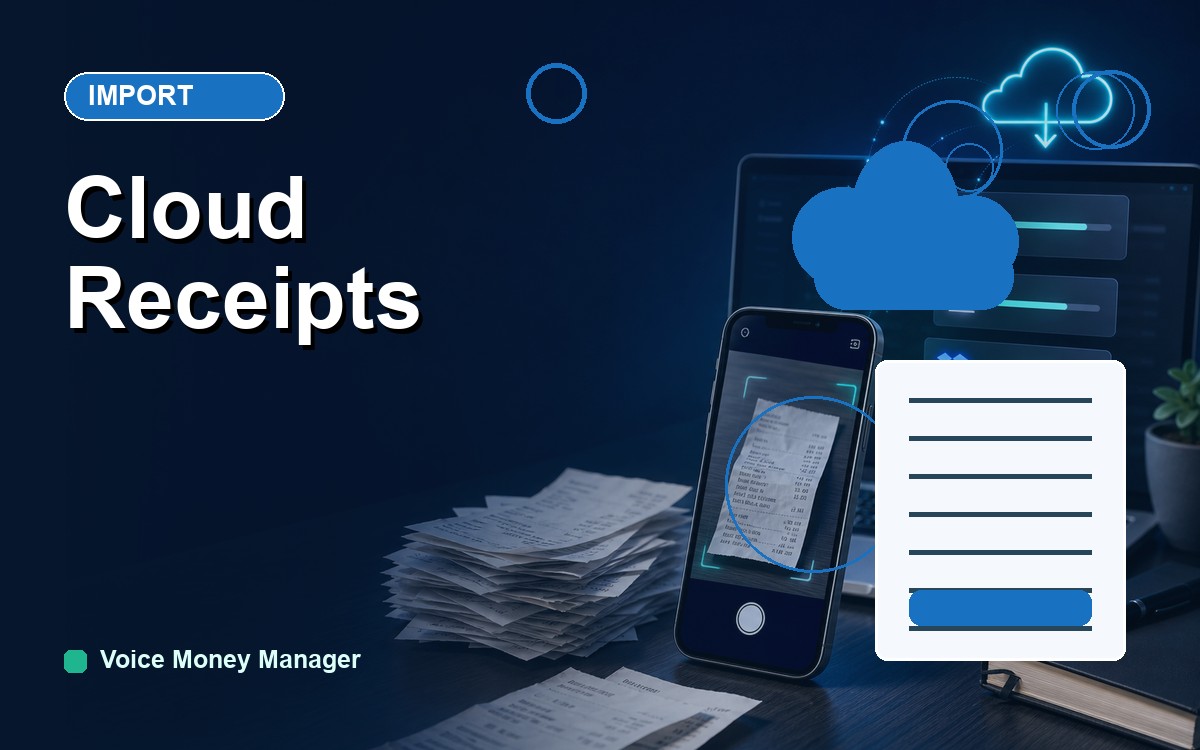
If you're like most business owners, your receipts already end up in the cloud without much thought. The e-receipt from that online order, the PDF invoice a supplier emailed, the photo you snapped of a gas receipt — a lot of them get saved or forwarded into a Dropbox folder and then quietly forgotten. The intention was good. The follow-through, not so much.
Here's the fix. Instead of you dragging those files into your books one by one, connect your Dropbox to Voice Money Manager and point it at the folder where those receipts live. From then on it imports what's there and reads each one — pulling out the vendor, date, total, and tax — so the transaction is basically built for you. Better still, it keeps watching that folder, so every new receipt you drop in gets pulled and parsed without you lifting a finger.
Why a watched folder changes the game
The hardest part of bookkeeping isn't the math — it's the habit. Sitting down to process a pile of receipts feels like a chore, so it gets put off, and the pile grows. A connected folder flips that around. The work happens continuously and invisibly. You keep doing what you already do (saving receipts to Dropbox), and the parsing just happens on its own.
It also means your proof and your numbers live together. Every parsed receipt becomes a transaction with the image attached, so when a client, an accountant, or the tax office asks for backup, it's already there.
How to connect Dropbox, step by step
- Open the import screen and choose Dropbox. You'll be sent to Dropbox's own sign-in to authorize the connection securely — Voice Money Manager never sees your password.
- Pick the folder to watch. Choose the folder where your receipts land — for many people that's the folder they forward e-receipts to, or a "Receipts" folder they save into.
- Let it import what's already there. Everything in the folder gets pulled in and parsed — vendor, date, total, and tax read from each receipt automatically.
- Review the drafts. Each parsed receipt shows up as a ready-to-confirm transaction with its image attached. Skim, adjust a category if needed, and save.
- Keep dropping receipts in. New files added to the folder get picked up and parsed on their own, so your books stay current without a manual import.
A real example: the folder that filled itself
Meet Dev, who runs a two-van mobile detailing business. His suppliers email invoices for wax, microfiber towels, and equipment, and he'd set up his inbox to forward those attachments into a Dropbox folder called "Detailing Receipts." The folder worked great as a shoebox — and just as poorly, because nobody was emptying it. By mid-year it held 140-odd PDFs he'd never entered.
Dev connects Dropbox to Voice Money Manager and points it at that folder. In one pass it imports all 140 files and reads each one: the towel supplier at $86.40, the equipment invoice at $1,250, the monthly software charge at $29. Each lands as a draft transaction with the vendor, date, total, and tax already filled and the original PDF attached. Dev spends a few minutes confirming categories, and he's caught up. The real win comes after — every new supplier invoice that forwards into the folder now gets parsed automatically, so he never has to do the big catch-up again.
Snap the paper ones too
Cloud import handles everything digital, but plenty of receipts still start as paper — the parking stub, the hardware-store slip, the lunch with a client. For those, scanning receipts with your phone is the natural partner: snap it, and it's parsed and filed the same way a Dropbox receipt is. Between the watched folder for digital receipts and quick phone scans for paper, almost nothing has to be typed in by hand.
OneDrive support is on the way, so if your files live there instead, you'll soon be able to connect it the same way. For now, Dropbox is the fastest route to a folder that files itself.
Let your receipts file themselves
Connect Dropbox, choose a folder, and Voice Money Manager imports and parses every receipt in it — then keeps pulling in new ones automatically.
Connect a cloud folderFAQ
Does it keep importing new receipts, or just once? It keeps going. After the initial import of what's already in the folder, Voice Money Manager watches for new files and pulls in and parses each one automatically, so your books stay current on their own.
Is my Dropbox password shared with Voice Money Manager? No. You authorize the connection through Dropbox's own secure sign-in, which hands back limited access to the folder you choose. Your password is never seen or stored.
What about OneDrive? OneDrive support is on the way. Today you can connect Dropbox and point it at any folder; OneDrive will work the same way once it's available.